> ## Documentation Index
> Fetch the complete documentation index at: https://docs.growthbook.io/llms.txt
> Use this file to discover all available pages before exploring further.
# Targeting Conditions
> Target feature flags with user attributes, conditions, saved groups, and percentage rollouts.
Add targeting conditions to a [rule](/features/rules) to control which values a user sees. Conditions are evaluated against **attributes** you pass into the SDK — like user ID, country, plan type, or any custom property.
This page covers how to set up attributes, write conditions, and use Saved Groups for reusable targeting.
## Attributes
For targeting to work, you need to pass attributes into the GrowthBook SDK and define them in the GrowthBook app. Here's a quick overview of how to do both.
### Passing Attributes into the SDK
Attributes are passed into your SDKs as key-value pairs. The keys are completely customizable — use whatever fits your application's data model.
Here's an example from the JavaScript SDK:
```ts theme={null}
growthbook.setAttributes({
id: "123",
email: "hello@growthbook.io",
country: "US",
url: window.location.href,
userAgent: navigator.userAgent,
admin: true,
age: 50,
});
```
### Defining Attributes in GrowthBook
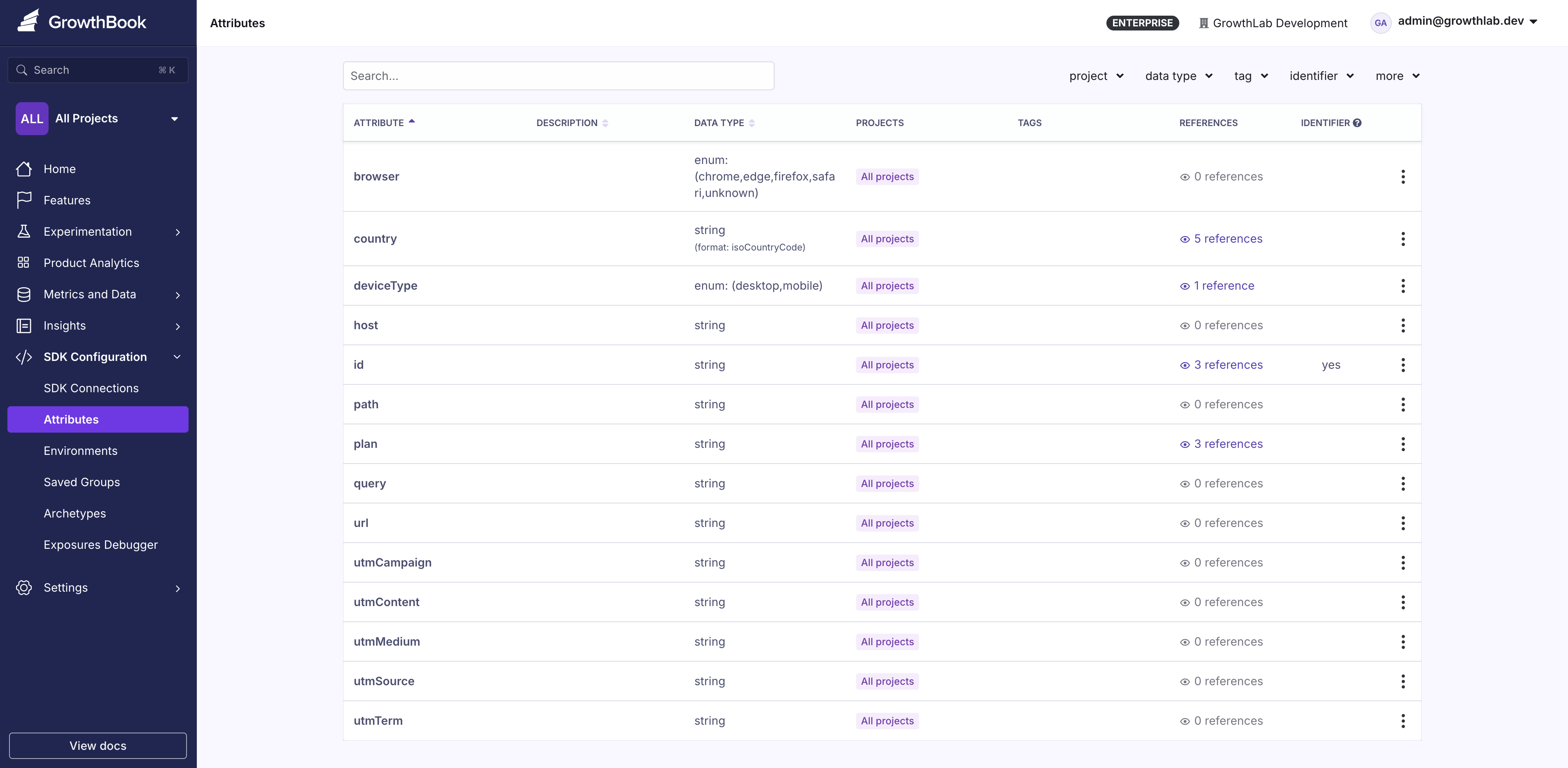
In addition to passing attributes into the SDK, define the same attribute keys in the GrowthBook app under **SDK Connections** → **Attributes**:
**Attribute Values Are Never Sent to GrowthBook**
The actual values of targeting attributes (e.g., user IDs, emails) are never sent to GrowthBook. They are only stored in memory locally within the SDK. This architecture keeps your users' PII safe and secure.
Each attribute has 4 parts:
* **Attribute name** — How the attribute is referenced in the SDK.
* **Data Type** — The type of value the attribute holds.
* **Identifier** — Whether this attribute uniquely identifies a person, account, company, or device. Identifiers are used for experiment assignments.
* **Projects** — Which projects the attribute is available in. If no projects are selected, the attribute is available everywhere.
### Attribute Data Types
GrowthBook supports the following attribute data types:
| Data Type | Description | Example |
| - | - | - |
| **Boolean** | true or false value | `true`, `false` |
| **Number** | Floats or integers | `25`, `3.14`, `-8` |
| **String** | Freeform text | `"alice@example.com"`, `"blue"` |
| **Enum** | Short list of predefined string values | `"basic"`, `"pro"`, `"enterprise"` |
| **Secure String** | String values hashed before passing to SDK for privacy | `"secure-id-123"` |
| **Array of Strings** | List of strings, useful for tags or categories | `["admin", "editor"]` |
| **Array of Numbers** | List of numeric values | `[1, 2, 3, 5, 8]` |
| **Array of Secure Strings** | Multiple hashed string values for secure targeting | `["user123", "user456"]` |
#### Constrained List Attributes
Array attributes (**Array of Strings**, **Array of Numbers**, **Array of Secure Strings**) can optionally be restricted to a fixed set of allowed values. When creating or editing an array attribute under **SDK Configurations → Attributes**, fill in the **Allowed Values** field with a comma-separated list — a user can still hold multiple values at once (e.g. `["admin", "editor"]`), but each must be one of the allowed values.
Once restricted, targeting conditions on that attribute use a typeahead multi-select that only accepts the allowed values (no free-form entry) and offer the `includes any of` / `includes none of` operators. Leave **Allowed Values** blank to keep the list unrestricted.
#### Changing an Attribute's Data Type
You can change an attribute's data type in place (including String → Enum) by editing it under **SDK Configurations → Attributes**. You do **not** need to create a new attribute or re-point features — the change is applied in place and existing targeting conditions keep evaluating, since values are stored as-is and the SDK does not enforce data types.
When converting to a constrained type (Enum, or an array with Allowed Values), make sure the allowed values include every value already used in existing conditions. Conditions that reference an out-of-list value, or that use an operator no longer offered for the new type, keep running but become harder to edit. The edit modal lists the features, experiments, and condition groups that reference the attribute so you can audit them first.
#### Semantic Version Targeting
GrowthBook supports semantic version string comparisons, so that `1.0.10` is correctly treated as greater than `1.0.9`.
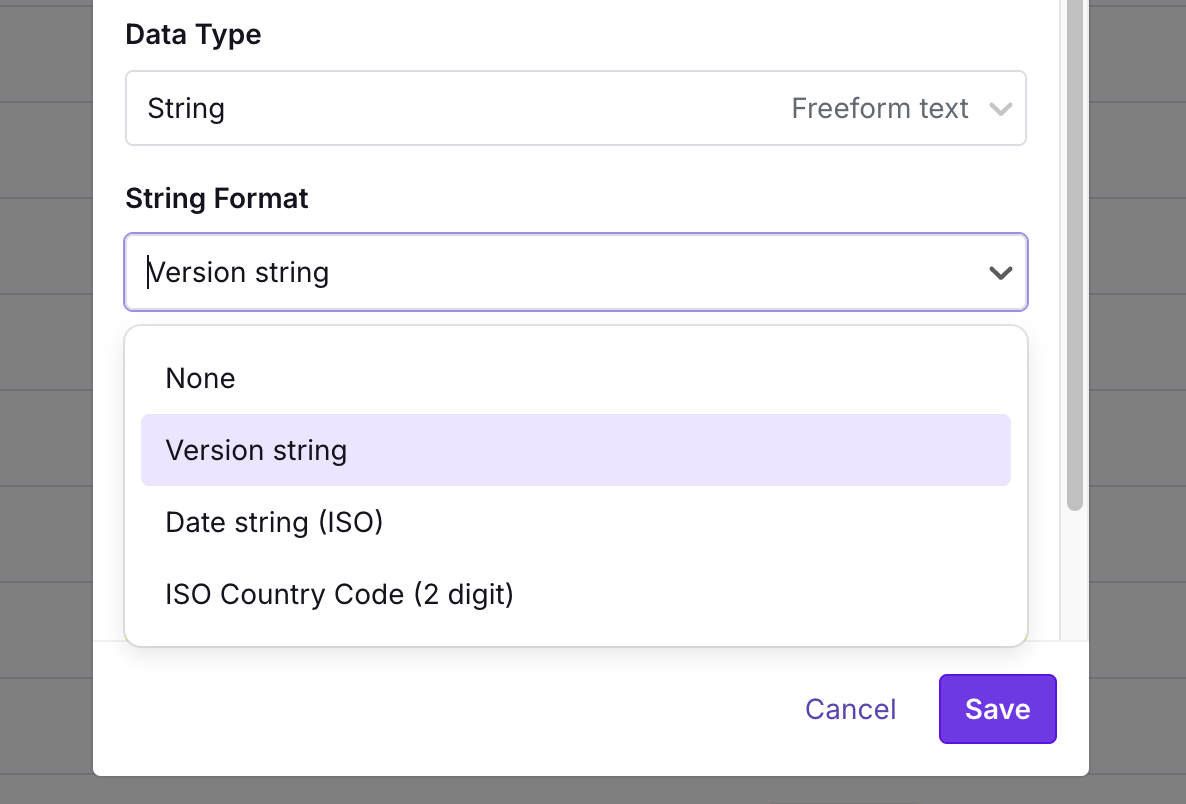
To use this, create or edit a String attribute under **SDK Configurations** → **Attributes** and select **Version string** in the format dropdown.
After saving, targeting operators (e.g., `is greater than`) automatically use a version-safe comparison function.
**SDK Compatibility**
Semantic version targeting is only supported in some SDKs. Check the release notes for your specific SDK to confirm compatibility.
#### Date Targeting
GrowthBook supports a date format for string attributes that makes it easier to target by date.
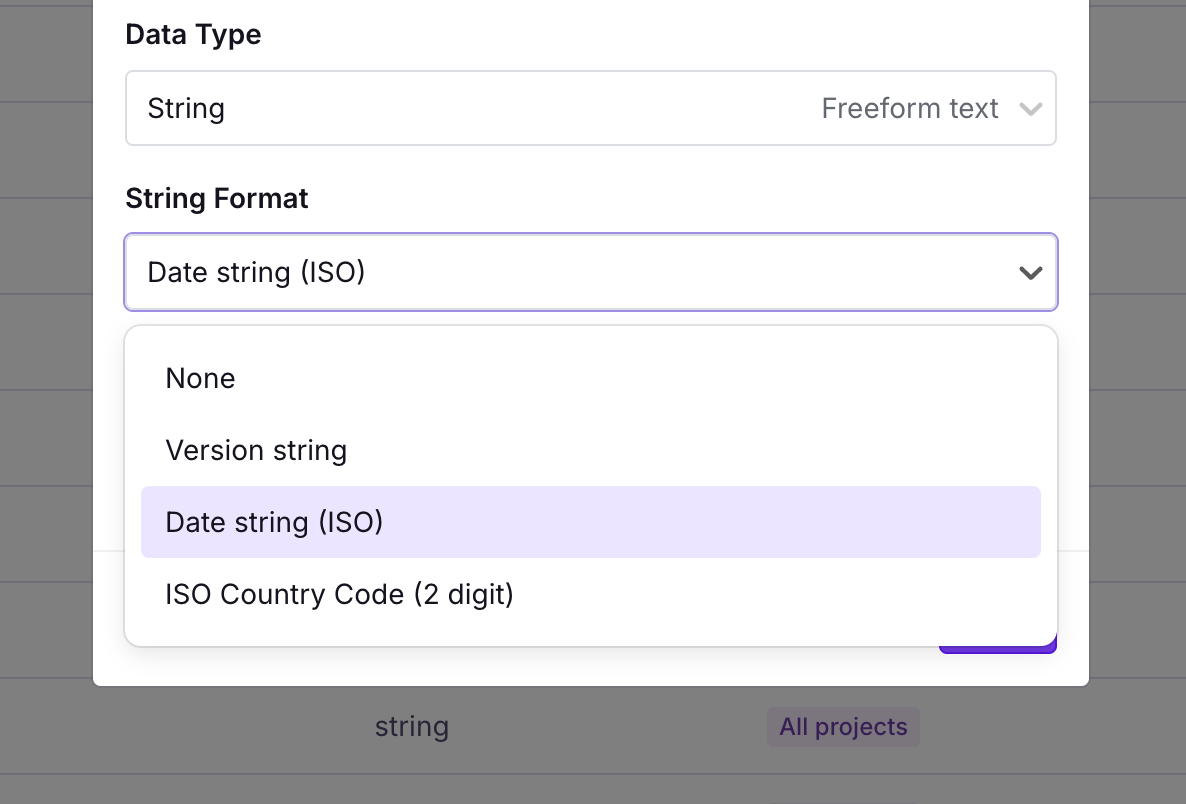
To use this, create or edit a string attribute under **SDK Configurations → Attributes** and select **Date string** in the format dropdown.
After saving, certain targeting operators (e.g., `is after or on` or `is equal to`) display a date picker input. Dates entered with the date picker are saved as ISO-formatted date strings (e.g., `2024-07-23T20:06`).
#### Country Code Targeting
Use [2-character ISO country codes](https://en.wikipedia.org/wiki/ISO_3166-1_alpha-2) to simplify targeting by country.
To set up country code targeting:
* Create an attribute and set the **Data Type** to `String`.
* Change the **String Format** to `ISO Country Code (2 letter)`.
* Save the attribute.
When setting targeting rules, you'll get a dropdown to select a country directly.
### Defining Conditions
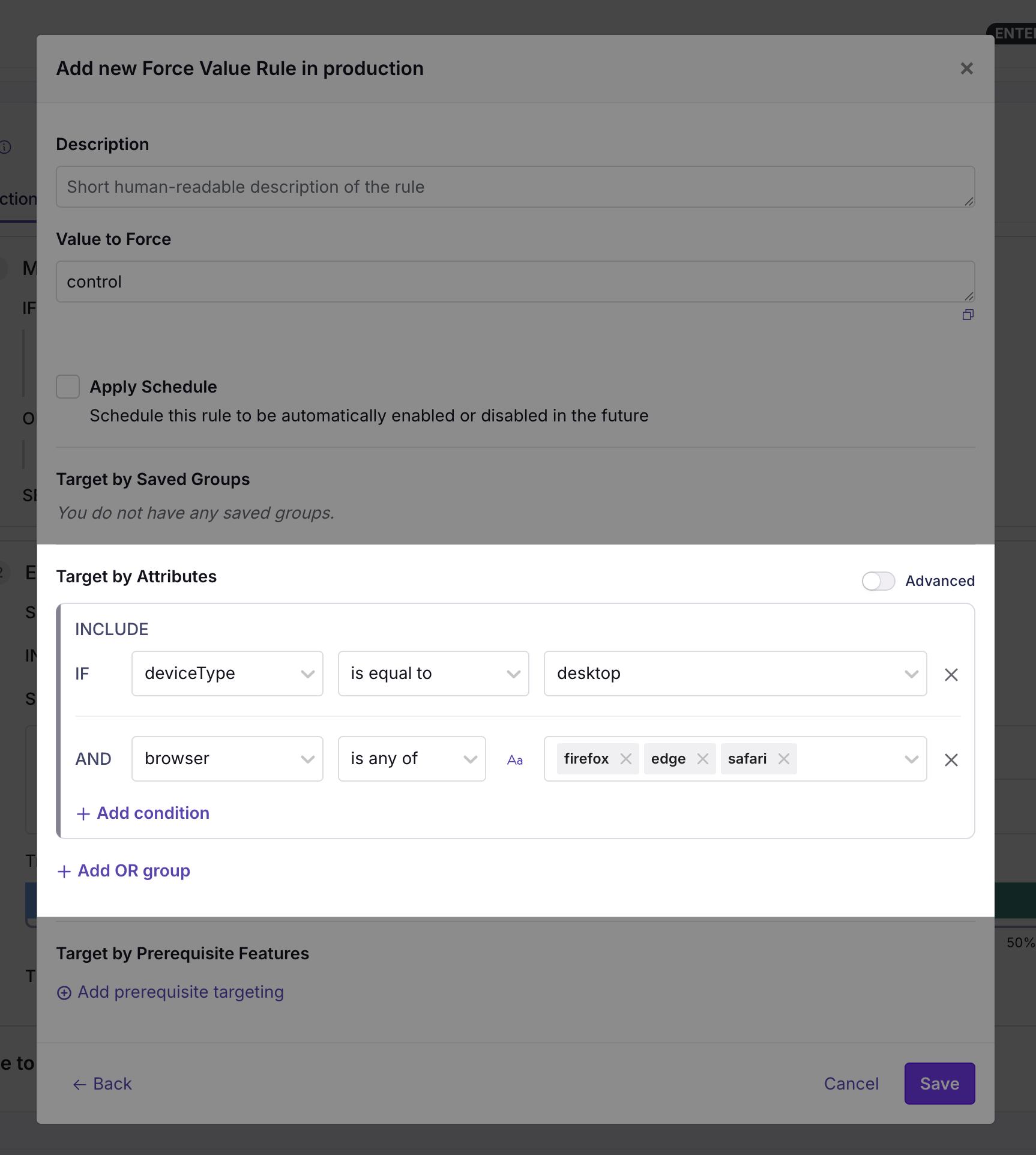
GrowthBook provides a visual UI for defining targeting conditions using your attributes.
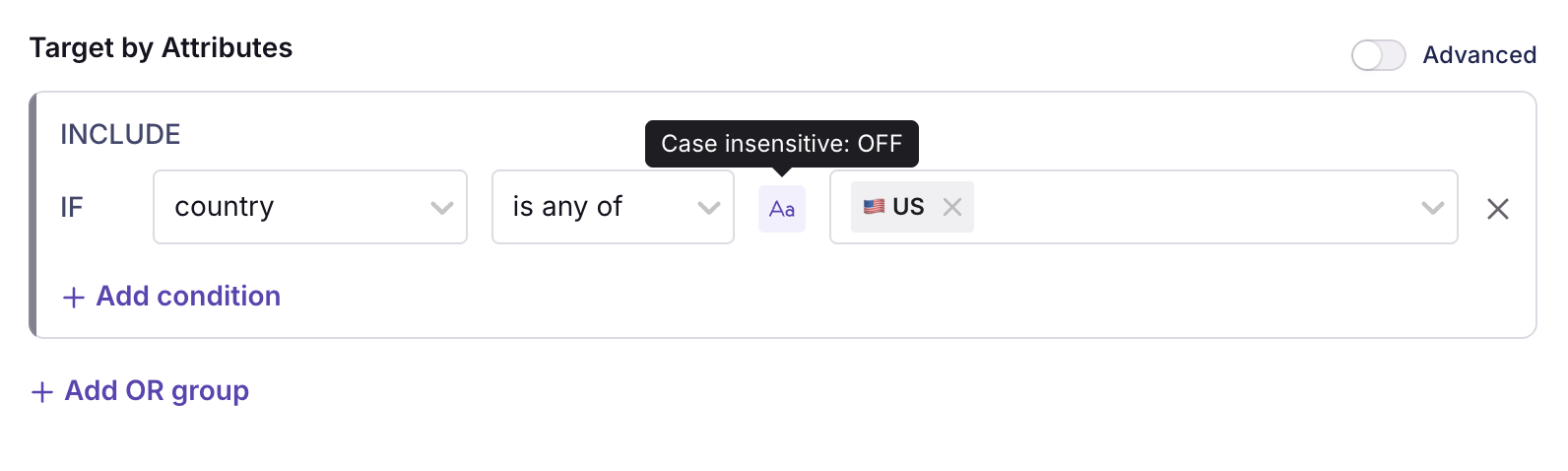
By default, string attributes are *case sensitive*. For example, if you pass `us` into the SDK, it will not match `US`. To make string attributes case insensitive, enable the **Case insensitive** toggle:
### Advanced Mode
For more advanced targeting, enter conditions as JSON by clicking **Advanced Mode**.
The JSON structure uses a MongoDB-inspired query syntax. Multiple conditions are always joined with `AND` (except when explicitly using `$or`/`$nor`). Below are all supported operators with examples.
#### Simple Equality
Key/value pairs for exact matches:
```json theme={null}
{
"attribute1": "value1",
"attribute2": 123,
"attribute3": false
}
```
#### Comparison Operators
Basic comparison operators for string/number attributes:
* `$eq` (equals)
* `$ne` (not equals)
* `$lt` (less than)
* `$lte` (less than or equal to)
* `$gt` (greater than)
* `$gte` (greater than or equal to)
* `$regex` (regular expression match, string attributes only)
* `$in` (in array)
* `$nin` (not in array)
```json theme={null}
{
"foo": {
"$gt": 10,
"$lte": 99
},
"bar": {
"$in": ["a","b","c"]
},
"baz": {
"$regex": "^test-([0-9]+)$"
}
}
```
#### Semantic Version Operators
Comparison operators for semantic version strings:
* `$veq` (equals)
* `$vne` (not equals)
* `$vlt` (less than)
* `$vlte` (less than or equal to)
* `$vgt` (greater than)
* `$vgte` (greater than or equal to)
```json theme={null}
{
"appVersion": {
"$vgt": "1.5.6",
"$vlte": "5.4.0"
}
}
```
#### Array Operators
Operators for array attributes:
* `$elemMatch` (at least one element must match the specified condition)
* `$all` (all of the specified values must exist in the array)
* `$size` (array length must match the specified condition)
```json theme={null}
{
"emails": {
"$elemMatch": {
"$regex": "@gmail.com$"
}
},
"hobbies": {
"$all": ["hiking","tennis","chess"]
},
"tags": {
"$size": {
"$gt": 5
}
}
}
```
#### Miscellaneous Operators
* `$exists` (tests if the attribute value is null or not)
* `$type` (tests if the attribute's type matches the type specified)
* `$not` (inverts a nested condition)
```json theme={null}
{
"alternateEmail": {
"$exists": true
},
"foo": {
"$type": "string"
},
"name": {
"$not": {
"$regex": "^J"
}
}
}
```
#### Logical Operators
Logical operators with arbitrary nesting levels:
* `$or`
* `$nor`
* `$and`
* `$not`
```json theme={null}
{
"$or": [
{
"$not": {
"foo": "abc"
}
},
{
"$and": [
{"bar": true},
{"baz": 123}
]
}
]
}
```
**MongoDB-style Query Syntax**
GrowthBook uses MongoDB query syntax because it is easy to read, write, and well documented. Conditions are never executed against a database — the SDKs include a lightweight interpreter for this syntax that runs entirely locally.
## Saved Groups
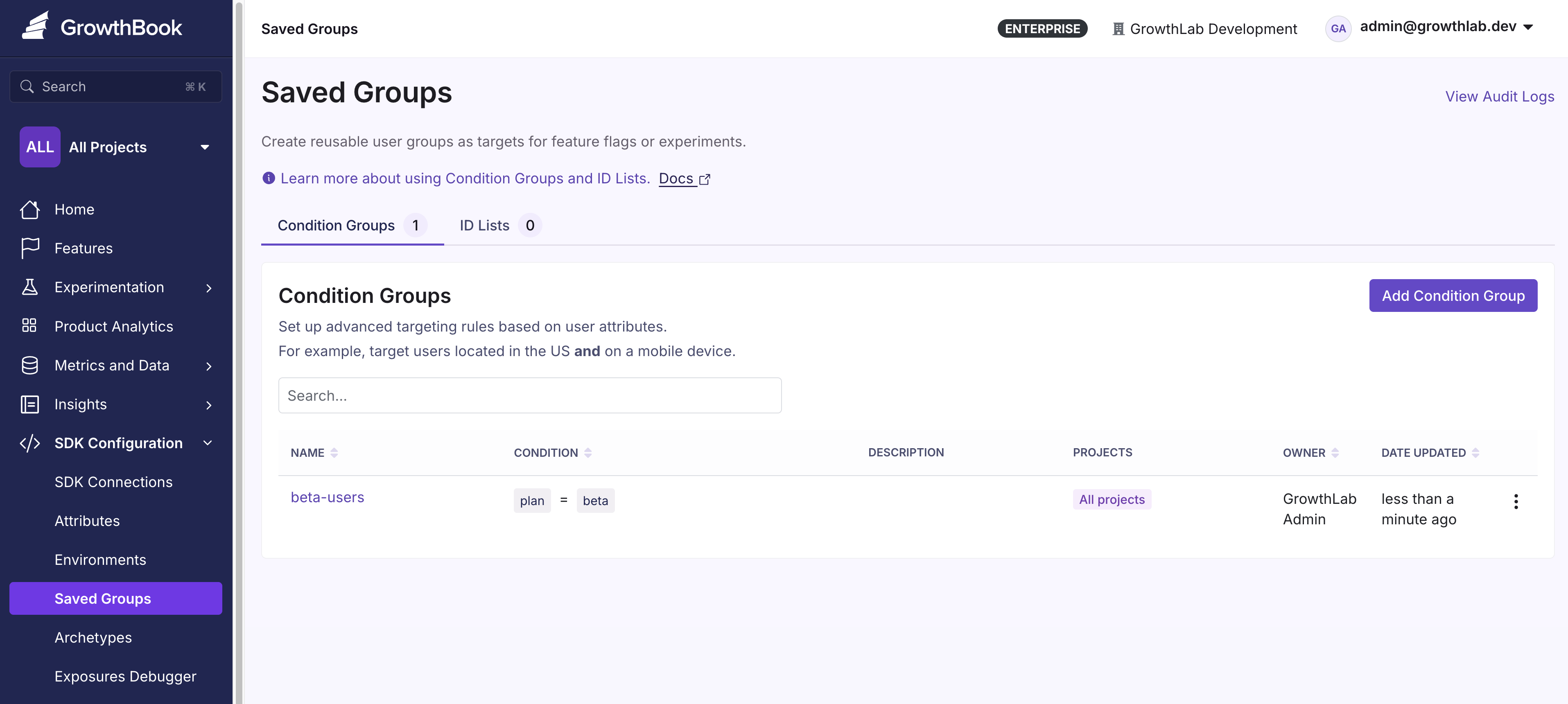
Saved Groups let you target the same group of users across multiple features and experiments. Define a group once and reuse it everywhere — for example, beta testers or high-value customers.
### Project Scope
By default, a Saved Group's Projects help filter the pickers. Cross-project references remain allowed by the server, including nested Condition Groups.
To enforce scope on Feature Flags, enable **Enforce Saved Group Project scope** under **Settings → SDK Configuration → Saved Group Settings**. New references must then use groups that are unscoped or shared with every Project where the referencing rule can run. Existing references are preserved; expanding their delivery scope checks only the additional Projects. This includes the Feature Flag's primary Project and `targetingProjects` (or All Projects), narrowed by the rule's own Project scope. A rule delivered to All Projects requires unscoped groups. With enforcement enabled, the rule pickers apply this Project scope and keep existing selections visible.
Validation follows the entire nested Saved Group graph, including `$savedGroups`, `$inGroup`, and `$notInGroup`. Nested groups do not need to cover their parent group's scope: each is checked against the consuming Feature Flag's evaluation scope. For example, a group shared with Projects A and B can reference a group shared only with B when the consuming rule runs only in B.
When enforcement is enabled, the server checks rule writes and publication, including Project moves and restored revisions. Ramp plans validate new Saved Group references when saved, before a step runs. Restoring a ramp’s saved starting state or an earlier step preserves its existing targeting. Changing a Saved Group's Projects or nested references is blocked if it introduces a scope violation for a consuming Feature Flag or active Feature Flag draft, including archived Feature Flags. Saved Group drafts are checked against their consumers when published. Update the references or share the groups with the required Projects first. Feature publication and bulk-release planning report scope failures as blocking gates. Warning and schema-validation overrides do not bypass this organization policy.
Enabling enforcement does not rewrite existing targeting or remove groups from SDK payloads. References already stored in live Feature Flags and drafts continue to work through ordinary edits and publication, even if they are outside their groups' Project scope. New references (including references in new rules) and additional delivery Projects are validated. Combining a draft reference with new targeting Projects during a merge is also checked. This setting applies to Feature Flag targeting; standalone experiment targeting is unchanged.
### Condition Groups
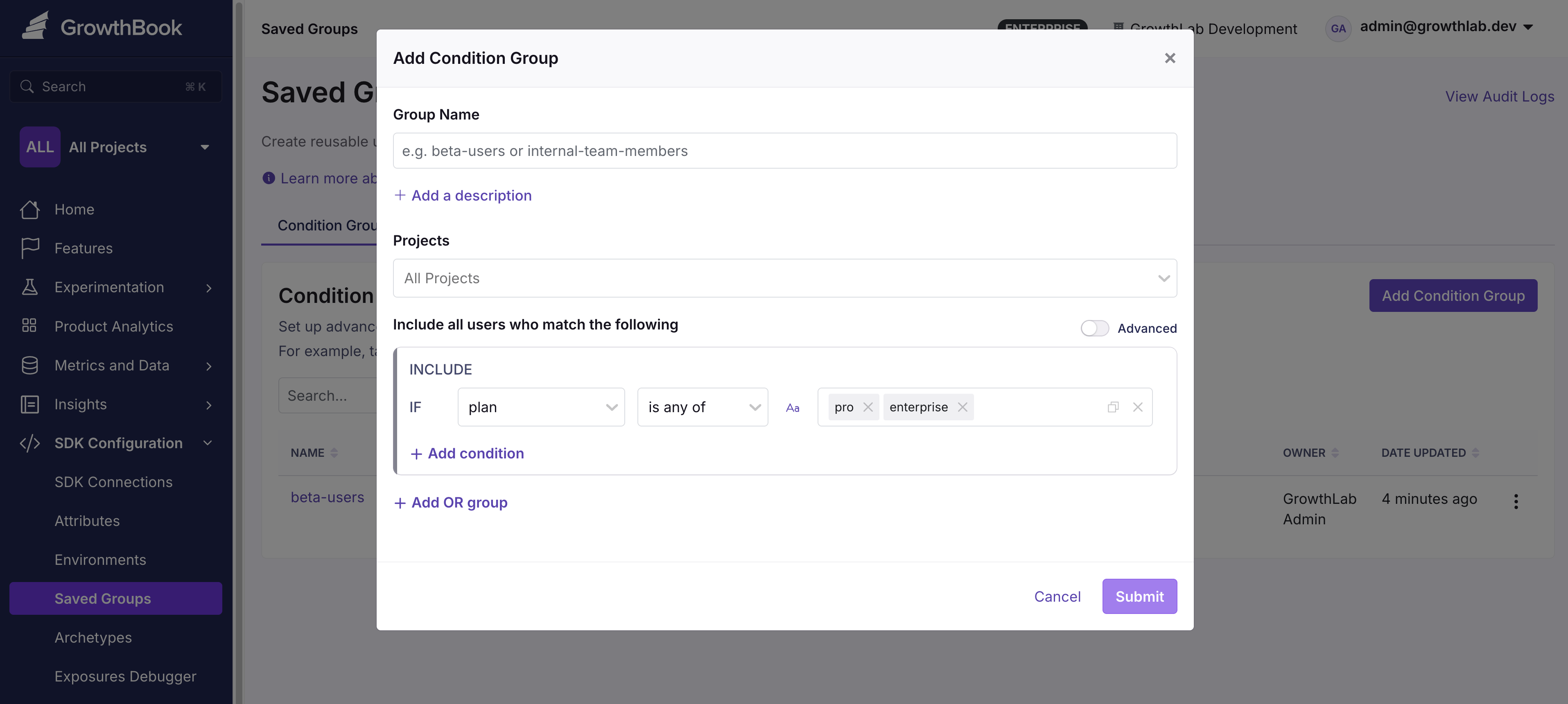
Define targeting rules based on user attributes. For example, target users who are located in the US and on a mobile device.
### ID Lists
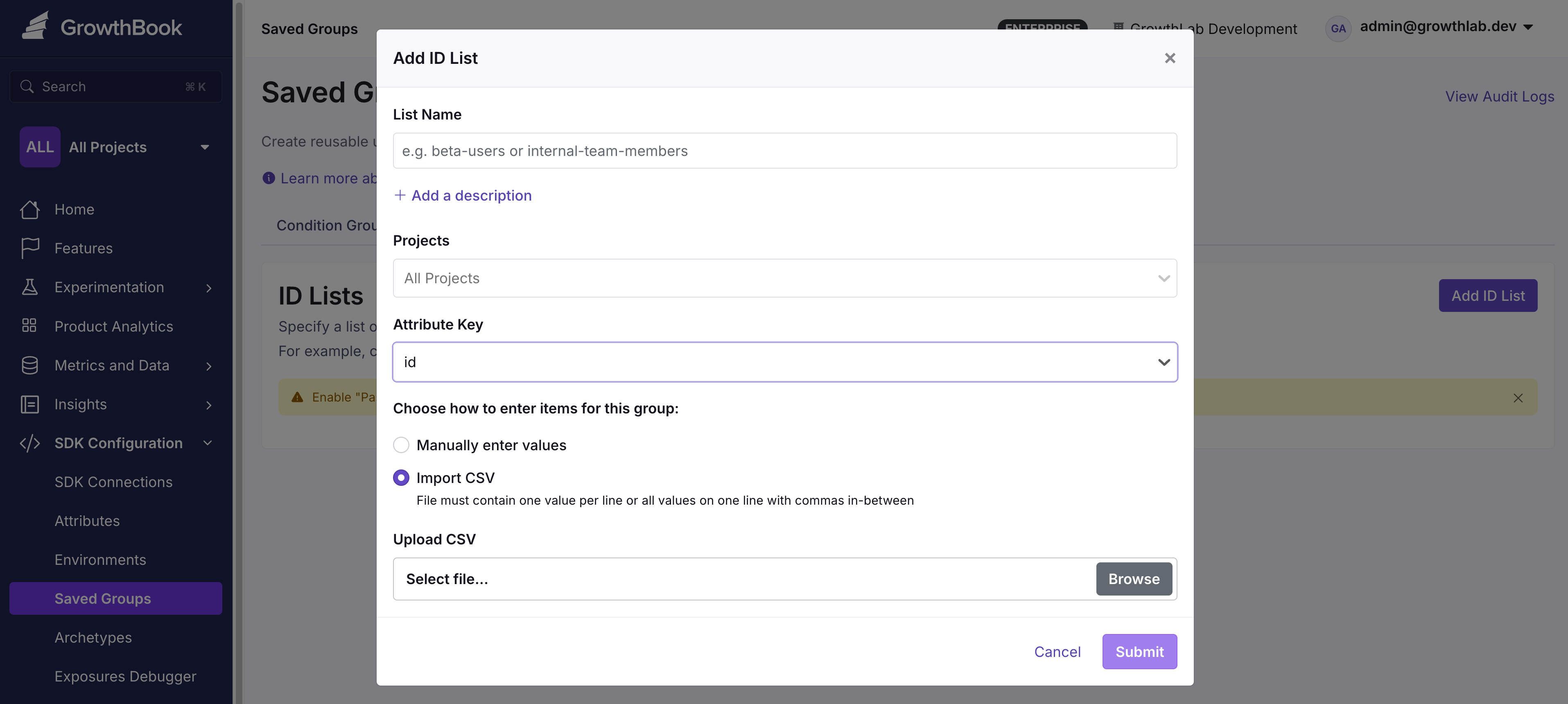
Manually define targeted users via text input or by uploading a CSV. For example, create a beta testers group by uploading a CSV of user IDs.
ID Lists are limited to 1 MB. Using multiple large ID Lists may impact performance as it increases the SDK payload. Keep ID Lists as concise as possible.
ID Lists accept the following attribute types: `string`, `secureString`, or `number`. For targeting other types of attributes, use [Condition Groups](#condition-groups).
**Passing Saved Groups by reference**
Enterprise users can reduce payload size by passing Saved Groups by reference: each group is sent once in the payload instead of being copied into every rule that uses it. Edit your SDK Connection and set **Pass Saved Groups by reference** to **ID Lists only** or **All Saved Groups**. **All Saved Groups** needs a newer SDK version, such as JavaScript SDK 1.8.0 or later, or another SDK version that supports it. If the setting isn't visible, your SDK version does not support it.
For more advanced targeting based on the state of other feature flags, see [Prerequisite Features](/features/prerequisites).
***
**Legacy behavior for empty ID lists**
Empty lists would previously be ignored in the SDK payloads, causing targeting conditions referencing those lists to always evaluate to true. ID Lists created after the behavior was changed properly use the empty list, so rules checking whether a value is in the list always evaluate to false. Lists created before the change preserve the old behavior so as not to break existing features.
To make an ID list with the legacy behavior evaluate to false instead of true, add a single placeholder value such as "" or "\_" so that the list isn't empty.
 After saving, targeting operators (e.g., `is greater than`) automatically use a version-safe comparison function.
 After saving, certain targeting operators (e.g., `is after or on` or `is equal to`) display a date picker input. Dates entered with the date picker are saved as ISO-formatted date strings (e.g., `2024-07-23T20:06`).
#### Country Code Targeting
Use [2-character ISO country codes](https://en.wikipedia.org/wiki/ISO_3166-1_alpha-2) to simplify targeting by country.
To set up country code targeting:
* Create an attribute and set the **Data Type** to `String`.
* Change the **String Format** to `ISO Country Code (2 letter)`.
* Save the attribute.
When setting targeting rules, you'll get a dropdown to select a country directly.
### Defining Conditions
GrowthBook provides a visual UI for defining targeting conditions using your attributes.
After saving, certain targeting operators (e.g., `is after or on` or `is equal to`) display a date picker input. Dates entered with the date picker are saved as ISO-formatted date strings (e.g., `2024-07-23T20:06`).
#### Country Code Targeting
Use [2-character ISO country codes](https://en.wikipedia.org/wiki/ISO_3166-1_alpha-2) to simplify targeting by country.
To set up country code targeting:
* Create an attribute and set the **Data Type** to `String`.
* Change the **String Format** to `ISO Country Code (2 letter)`.
* Save the attribute.
When setting targeting rules, you'll get a dropdown to select a country directly.
### Defining Conditions
GrowthBook provides a visual UI for defining targeting conditions using your attributes.
 By default, string attributes are *case sensitive*. For example, if you pass `us` into the SDK, it will not match `US`. To make string attributes case insensitive, enable the **Case insensitive** toggle:
 ### Advanced Mode
For more advanced targeting, enter conditions as JSON by clicking **Advanced Mode**.
The JSON structure uses a MongoDB-inspired query syntax. Multiple conditions are always joined with `AND` (except when explicitly using `$or`/`$nor`). Below are all supported operators with examples.
#### Simple Equality
Key/value pairs for exact matches:
```json theme={null}
{
"attribute1": "value1",
"attribute2": 123,
"attribute3": false
}
```
#### Comparison Operators
Basic comparison operators for string/number attributes:
* `$eq` (equals)
* `$ne` (not equals)
* `$lt` (less than)
* `$lte` (less than or equal to)
* `$gt` (greater than)
* `$gte` (greater than or equal to)
* `$regex` (regular expression match, string attributes only)
* `$in` (in array)
* `$nin` (not in array)
```json theme={null}
{
"foo": {
"$gt": 10,
"$lte": 99
},
"bar": {
"$in": ["a","b","c"]
},
"baz": {
"$regex": "^test-([0-9]+)$"
}
}
```
#### Semantic Version Operators
Comparison operators for semantic version strings:
* `$veq` (equals)
* `$vne` (not equals)
* `$vlt` (less than)
* `$vlte` (less than or equal to)
* `$vgt` (greater than)
* `$vgte` (greater than or equal to)
```json theme={null}
{
"appVersion": {
"$vgt": "1.5.6",
"$vlte": "5.4.0"
}
}
```
#### Array Operators
Operators for array attributes:
* `$elemMatch` (at least one element must match the specified condition)
* `$all` (all of the specified values must exist in the array)
* `$size` (array length must match the specified condition)
```json theme={null}
{
"emails": {
"$elemMatch": {
"$regex": "@gmail.com$"
}
},
"hobbies": {
"$all": ["hiking","tennis","chess"]
},
"tags": {
"$size": {
"$gt": 5
}
}
}
```
#### Miscellaneous Operators
* `$exists` (tests if the attribute value is null or not)
* `$type` (tests if the attribute's type matches the type specified)
* `$not` (inverts a nested condition)
```json theme={null}
{
"alternateEmail": {
"$exists": true
},
"foo": {
"$type": "string"
},
"name": {
"$not": {
"$regex": "^J"
}
}
}
```
#### Logical Operators
Logical operators with arbitrary nesting levels:
* `$or`
* `$nor`
* `$and`
* `$not`
```json theme={null}
{
"$or": [
{
"$not": {
"foo": "abc"
}
},
{
"$and": [
{"bar": true},
{"baz": 123}
]
}
]
}
```
### Advanced Mode
For more advanced targeting, enter conditions as JSON by clicking **Advanced Mode**.
The JSON structure uses a MongoDB-inspired query syntax. Multiple conditions are always joined with `AND` (except when explicitly using `$or`/`$nor`). Below are all supported operators with examples.
#### Simple Equality
Key/value pairs for exact matches:
```json theme={null}
{
"attribute1": "value1",
"attribute2": 123,
"attribute3": false
}
```
#### Comparison Operators
Basic comparison operators for string/number attributes:
* `$eq` (equals)
* `$ne` (not equals)
* `$lt` (less than)
* `$lte` (less than or equal to)
* `$gt` (greater than)
* `$gte` (greater than or equal to)
* `$regex` (regular expression match, string attributes only)
* `$in` (in array)
* `$nin` (not in array)
```json theme={null}
{
"foo": {
"$gt": 10,
"$lte": 99
},
"bar": {
"$in": ["a","b","c"]
},
"baz": {
"$regex": "^test-([0-9]+)$"
}
}
```
#### Semantic Version Operators
Comparison operators for semantic version strings:
* `$veq` (equals)
* `$vne` (not equals)
* `$vlt` (less than)
* `$vlte` (less than or equal to)
* `$vgt` (greater than)
* `$vgte` (greater than or equal to)
```json theme={null}
{
"appVersion": {
"$vgt": "1.5.6",
"$vlte": "5.4.0"
}
}
```
#### Array Operators
Operators for array attributes:
* `$elemMatch` (at least one element must match the specified condition)
* `$all` (all of the specified values must exist in the array)
* `$size` (array length must match the specified condition)
```json theme={null}
{
"emails": {
"$elemMatch": {
"$regex": "@gmail.com$"
}
},
"hobbies": {
"$all": ["hiking","tennis","chess"]
},
"tags": {
"$size": {
"$gt": 5
}
}
}
```
#### Miscellaneous Operators
* `$exists` (tests if the attribute value is null or not)
* `$type` (tests if the attribute's type matches the type specified)
* `$not` (inverts a nested condition)
```json theme={null}
{
"alternateEmail": {
"$exists": true
},
"foo": {
"$type": "string"
},
"name": {
"$not": {
"$regex": "^J"
}
}
}
```
#### Logical Operators
Logical operators with arbitrary nesting levels:
* `$or`
* `$nor`
* `$and`
* `$not`
```json theme={null}
{
"$or": [
{
"$not": {
"foo": "abc"
}
},
{
"$and": [
{"bar": true},
{"baz": 123}
]
}
]
}
```
 ### Condition Groups
Define targeting rules based on user attributes. For example, target users who are located in the US and on a mobile device.
### Condition Groups
Define targeting rules based on user attributes. For example, target users who are located in the US and on a mobile device.
 ### ID Lists
Manually define targeted users via text input or by uploading a CSV. For example, create a beta testers group by uploading a CSV of user IDs.
### ID Lists
Manually define targeted users via text input or by uploading a CSV. For example, create a beta testers group by uploading a CSV of user IDs.
 ID Lists are limited to 1 MB. Using multiple large ID Lists may impact performance as it increases the SDK payload. Keep ID Lists as concise as possible.
ID Lists accept the following attribute types: `string`, `secureString`, or `number`. For targeting other types of attributes, use [Condition Groups](#condition-groups).
ID Lists are limited to 1 MB. Using multiple large ID Lists may impact performance as it increases the SDK payload. Keep ID Lists as concise as possible.
ID Lists accept the following attribute types: `string`, `secureString`, or `number`. For targeting other types of attributes, use [Condition Groups](#condition-groups).