> ## Documentation Index
> Fetch the complete documentation index at: https://docs.growthbook.io/llms.txt
> Use this file to discover all available pages before exploring further.

# Ramp Schedules

> Increase a feature's traffic in timed stages, with optional approval gates and guardrail monitoring.

export const CommercialFeature = ({feature, description}) => {
  const commercialFeatures = {
    "adv-presentations": {
      plan: "enterprise",
      displayName: "Adv Presentations"
    },
    "advanced-permissions": {
      plan: "pro",
      displayName: "Advanced Permissions"
    },
    "ai-byok": {
      plan: "enterprise",
      displayName: "Ai Byok"
    },
    "ai-suggestions": {
      plan: "enterprise",
      displayName: "AI Suggestions"
    },
    archetypes: {
      plan: "pro",
      displayName: "Archetypes"
    },
    "audit-logging": {
      plan: "enterprise",
      displayName: "Audit Logging"
    },
    "cloud-proxy": {
      plan: "pro",
      displayName: "Cloud Proxy"
    },
    "code-references": {
      plan: "pro",
      displayName: "Code References"
    },
    "contextual-bandits": {
      plan: "enterprise",
      displayName: "Contextual Bandits"
    },
    "custom-hooks": {
      plan: "enterprise",
      displayName: "Custom Hooks"
    },
    "custom-launch-checklist": {
      plan: "enterprise",
      displayName: "Custom Launch Checklist"
    },
    "custom-markdown": {
      plan: "enterprise",
      displayName: "Custom Markdown"
    },
    "custom-metadata": {
      plan: "enterprise",
      displayName: "Custom Metadata"
    },
    "custom-roles": {
      plan: "enterprise",
      displayName: "Custom Roles"
    },
    dashboards: {
      plan: "enterprise",
      displayName: "Dashboards"
    },
    "decision-framework": {
      plan: "pro",
      displayName: "Decision Framework"
    },
    "encrypt-features-endpoint": {
      plan: "pro",
      displayName: "Encrypt Features Endpoint"
    },
    "environment-inheritance": {
      plan: "enterprise",
      displayName: "Environment Inheritance"
    },
    "events-forwarder": {
      plan: "pro",
      displayName: "Events Forwarder"
    },
    "experiment-impact": {
      plan: "enterprise",
      displayName: "Experiment Impact"
    },
    "feature-configs": {
      plan: "enterprise",
      displayName: "Feature Configs"
    },
    "funnel-metrics": {
      plan: "pro",
      displayName: "Funnel Metrics"
    },
    "hash-secure-attributes": {
      plan: "pro",
      displayName: "Hash Secure Attributes"
    },
    "historical-power": {
      plan: "pro",
      displayName: "Historical Power"
    },
    holdouts: {
      plan: "enterprise",
      displayName: "Holdouts"
    },
    "incremental-refresh": {
      plan: "enterprise",
      displayName: "Incremental Refresh"
    },
    "json-validation": {
      plan: "enterprise",
      displayName: "JSON Validation"
    },
    "large-saved-groups": {
      plan: "enterprise",
      displayName: "Large Saved Groups"
    },
    learnings: {
      plan: "enterprise",
      displayName: "Learnings"
    },
    livechat: {
      plan: "pro",
      displayName: "Livechat"
    },
    "manage-official-resources": {
      plan: "enterprise",
      displayName: "Manage Official Resources"
    },
    "metric-correlations": {
      plan: "enterprise",
      displayName: "Metric Correlations"
    },
    "metric-effects": {
      plan: "enterprise",
      displayName: "Metric Effects"
    },
    "metric-groups": {
      plan: "enterprise",
      displayName: "Metric Groups"
    },
    "metric-populations": {
      plan: "pro",
      displayName: "Metric Populations"
    },
    "metric-slices": {
      plan: "enterprise",
      displayName: "Metric Slices"
    },
    "multi-armed-bandits": {
      plan: "pro",
      displayName: "Multi Armed Bandits"
    },
    "multi-metric-queries": {
      plan: "enterprise",
      displayName: "Multi Metric Queries"
    },
    "multi-org": {
      plan: "enterprise",
      displayName: "Multi Org"
    },
    "multiple-sdk-webhooks": {
      plan: "pro",
      displayName: "Multiple Sdk Webhooks"
    },
    "no-access-role": {
      plan: "enterprise",
      displayName: "No Access Role"
    },
    "override-metrics": {
      plan: "pro",
      displayName: "Override Metrics"
    },
    "pipeline-mode": {
      plan: "enterprise",
      displayName: "Pipeline Mode"
    },
    "post-stratification": {
      plan: "enterprise",
      displayName: "Post Stratification"
    },
    "precomputed-dimensions": {
      plan: "pro",
      displayName: "Precomputed Dimensions"
    },
    "prerequisite-targeting": {
      plan: "enterprise",
      displayName: "Prerequisite Targeting"
    },
    prerequisites: {
      plan: "pro",
      displayName: "Prerequisites"
    },
    "product-analytics-dashboards": {
      plan: "pro",
      displayName: "Product Analytics Dashboards"
    },
    "project-admin-role": {
      plan: "enterprise",
      displayName: "Project Admin Role"
    },
    "quantile-metrics": {
      plan: "pro",
      displayName: "Quantile Metrics"
    },
    "ramp-schedules": {
      plan: "pro",
      displayName: "Ramp Schedules"
    },
    redirects: {
      plan: "pro",
      displayName: "Redirects"
    },
    "regression-adjustment": {
      plan: "pro",
      displayName: "CUPED"
    },
    releases: {
      plan: "enterprise",
      displayName: "Releases"
    },
    "remote-evaluation": {
      plan: "pro",
      displayName: "Remote Evaluation"
    },
    "require-approvals": {
      plan: "enterprise",
      displayName: "Require Approvals"
    },
    "require-project-for-features-setting": {
      plan: "enterprise",
      displayName: "Require Project For Features Setting"
    },
    "require-project-for-sdk-connections-setting": {
      plan: "enterprise",
      displayName: "Require Project For Sdk Connections Setting"
    },
    "retention-metrics": {
      plan: "pro",
      displayName: "Retention Metrics"
    },
    "safe-rollout": {
      plan: "pro",
      displayName: "Safe Rollout"
    },
    saveSqlExplorerQueries: {
      plan: "pro",
      displayName: "Save SQL Explorer Queries"
    },
    "schedule-feature-flag": {
      plan: "pro",
      displayName: "Schedule Feature Flag"
    },
    "scheduled-revisions": {
      plan: "enterprise",
      displayName: "Scheduled Revisions"
    },
    scim: {
      plan: "enterprise",
      displayName: "SCIM"
    },
    "sequential-testing": {
      plan: "pro",
      displayName: "Sequential Testing"
    },
    "share-product-analytics-dashboards": {
      plan: "enterprise",
      displayName: "Share Product Analytics Dashboards"
    },
    simulate: {
      plan: "pro",
      displayName: "Simulate"
    },
    sso: {
      plan: "enterprise",
      displayName: "SSO"
    },
    "sticky-bucketing": {
      plan: "pro",
      displayName: "Sticky Bucketing"
    },
    teams: {
      plan: "enterprise",
      displayName: "Teams"
    },
    templates: {
      plan: "enterprise",
      displayName: "Templates"
    },
    "unlimited-managed-warehouse-usage": {
      plan: "pro",
      displayName: "Unlimited Managed Warehouse Usage"
    },
    "visual-editor": {
      plan: "pro",
      displayName: "AI Visual Editor"
    }
  };
  const {plan, displayName} = commercialFeatures[feature];
  const isEnterprise = plan === "enterprise";
  const defaultDescription = isEnterprise ? "is available on Enterprise plans." : "is available on Pro and Enterprise plans.";
  const planLabel = isEnterprise ? "Enterprise" : "Pro";
  const containerStyle = isEnterprise ? {
    backgroundColor: "color-mix(in srgb, var(--indigo-a3) 60%, transparent)"
  } : {
    backgroundColor: "color-mix(in srgb, var(--amber-a3) 60%, transparent)"
  };
  const badgeStyle = isEnterprise ? {
    boxShadow: "inset 0 0 0 1px var(--indigo-a8)",
    color: "var(--indigo-a11)"
  } : {
    boxShadow: "inset 0 0 0 1px var(--amber-a8)",
    color: "var(--amber-a11)"
  };
  return <div className="flex items-start gap-2 mb-4 p-3 text-sm leading-[1.4] rounded-lg" style={containerStyle} role="note">
      <span className="inline-flex items-center justify-center px-1.5 h-5 text-xs font-medium rounded-full shrink-0 leading-none" style={badgeStyle}>
        {planLabel}
      </span>
      <div className="flex-1 leading-[1.3]">
        <strong className="font-semibold">{displayName}</strong>{" "}
        {defaultDescription} {description}
      </div>
    </div>;
};

<CommercialFeature feature="ramp-schedules" />

A Ramp Schedule rolls a feature out in stages instead of switching it on for everyone at once. You define the stages up front, and GrowthBook moves through them on a schedule you set. A typical schedule might show the feature to 1% of users, then 5%, then 25%, then 100%. Between stages, the rollout can wait a set amount of time or pause for a teammate's approval, so you widen exposure gradually and can stop early if something looks off.

## How ramp schedules work

A Ramp Schedule attaches to a single **Targeting rule** (a rule that serves a value to matching users, with optional targeting conditions). It is a release plan on top of that rule, not a separate rule type. You add one from the rule editor by choosing **Ramp-up** as the release plan.

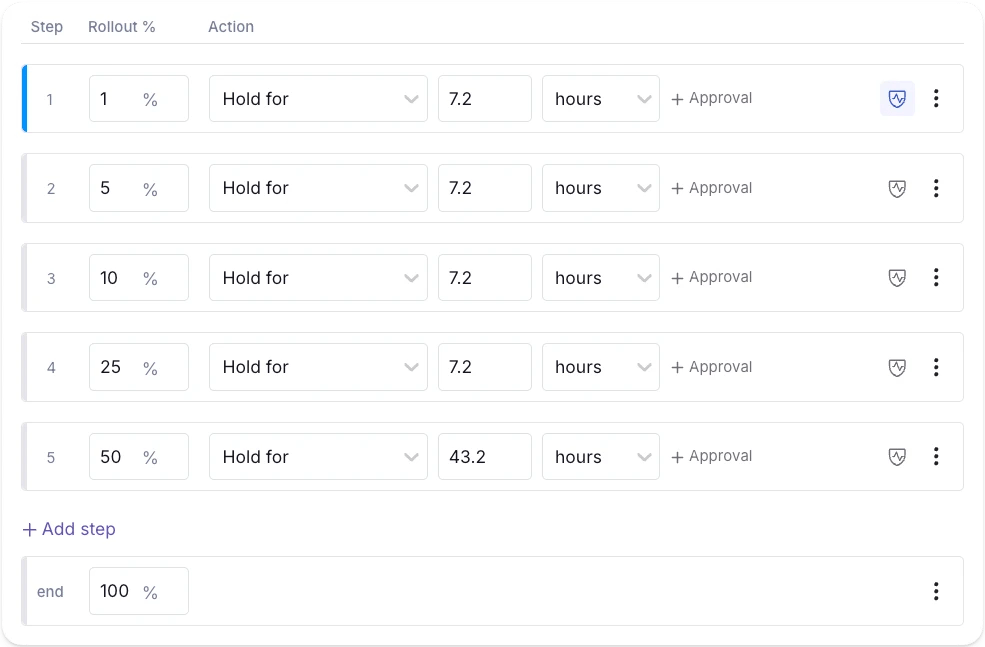
The schedule drives the rule through an ordered list of **steps**. Each step only sets the fields you want to change; everything else carries over from the previous step. A step can change:

* **Rollout %**: the percentage of matching users who get the rule's value.
* **Targeting**: the condition, saved groups, and prerequisites.
* **Environments**: which environments the rule applies to.
* **Value**: the value the rule serves.

Each step also has an **Action** that controls when it advances:

* **Hold for**: apply the step, then wait a set amount of time (for example, 12 hours) before advancing.
* **Hold for approval**: apply the step, then wait for a teammate to approve before advancing. You can also add **+ Approval** to a timed step so it waits on both. Approval is always the final gate, so any time or sample-size conditions clear first.
* **Hold for min. sample**: wait until a set number of users have been exposed. This applies only to [monitored steps](#monitored-steps-and-guardrails).

When a step's Action clears, GrowthBook applies the step's changes to the rule and starts the next step. Each advance publishes a new feature revision automatically, so your SDKs pick up the change through the normal feature payload.

If a schedule falls behind (for example, background processing was interrupted past several steps' hold times — pausing doesn't cause this, since pause shifts the timers), the overdue steps are caught up in a **single** advance: one revision publish (labeled with the folded range, such as "Ramp steps 4–12 of 20") and one webhook whose `previousStepIndex` shows the gap — `rampSchedule.actions.step.advanced`, or `rampSchedule.actions.completed` when the fold finishes the ramp. Consumers mirroring ramp progress should diff `currentStepIndex - previousStepIndex` rather than counting events. Approval and monitored steps are never skipped by a catch-up — the schedule always stops at them.

The grid always ends with an **end** row, set to 100% by default. That is the state the rule lands in when the schedule finishes; open its menu to attach final rule changes, such as removing targeting.

<Frame>
  <img src="https://mintcdn.com/growthbook-ea15456d/chESmwq9fuKVuEM6/static/images/features/ramp-schedule-steps.webp?fit=max&auto=format&n=chESmwq9fuKVuEM6&q=85&s=9ff34f04852b2e55ac85a2ce4dc67339" alt="Ramp-up step grid with rollout percentages, hold intervals, and per-step actions" width="800" data-path="static/images/features/ramp-schedule-steps.webp" />
</Frame>

### Schedule timing

* **Start**: choose **Immediately** to begin as soon as the rule is published, or **On date** to delay activation. The rule stays disabled until the start date.
* **Duration**: the total length of the ramp. In **Simple View** you set it directly and GrowthBook spaces the steps to fit; in **Advanced View** it shows a computed summary of your steps, such as "\~5d + monitored steps".
* **Disable on date**: click **+ Disable on date** to set an optional date that turns the rule off whether or not the ramp has finished. Use it for time-boxed rules.

### Lock feature while running

Turn on **Lock feature while running** to block publishing other draft changes to the feature while the ramp is actively progressing. This keeps manual edits from competing with the schedule.

<Note>
  The lock only applies while the ramp is running. It does not apply when the ramp is paused, completed, or rolled back, and it never blocks the changes the ramp engine makes as it advances. Pause the ramp to make immediate changes.
</Note>

### Sample by and hashing

**Sample by** sets the attribute GrowthBook hashes to assign users to the rollout, so the same user stays in the same bucket as the rollout grows. Expand **Hashing & seed options** to set a custom **Seed** or pick the **Hashing** algorithm version. These work the same as on a standard rollout rule.

## Ramp schedule vs. Safe Rollout

A [Safe Rollout](/features/safe-rollouts) is a Ramp Schedule with guardrail monitoring turned on. Both use the same engine. The difference is whether you watch metrics as the ramp progresses.

* Use a plain **Ramp Schedule** when you want a release plan that runs on its own: step the rollout up over time, broaden targeting in stages, gate jumps behind approval, or disable the rule on a set date.
* Use a **monitored** Ramp Schedule (a Safe Rollout) when you also want GrowthBook to watch guardrail metrics and automatically hold or roll back if the release harms them.

You configure monitoring per step, so a single schedule can mix unmonitored and monitored steps.

## Adding a ramp schedule

### 1. Add a Targeting rule

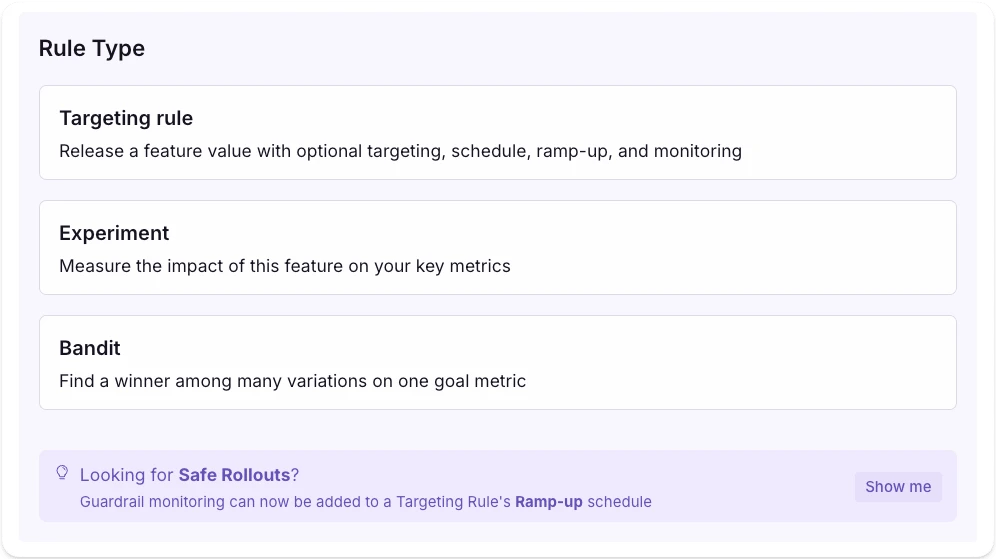
When you add a rule to a feature, choose **Targeting rule** as the rule type.

<Frame>
  <img src="https://mintcdn.com/growthbook-ea15456d/chESmwq9fuKVuEM6/static/images/features/rule-type-picker.webp?fit=max&auto=format&n=chESmwq9fuKVuEM6&q=85&s=64020cd284da044d5cc5019ea3d70cad" alt="Rule type picker showing Targeting rule, Experiment, and Bandit, with a callout pointing to Safe Rollouts" width="800" data-path="static/images/features/rule-type-picker.webp" />
</Frame>

<Tip>
  Looking for Safe Rollouts? Choose a Targeting rule and turn on guardrail monitoring in its ramp-up schedule. The **Show me** shortcut on the rule type screen configures a fully monitored ramp for you.
</Tip>

### 2. Choose the Ramp-up release plan

In the rule settings, set the release plan to **Ramp-up** (or **Monitored Ramp-up** to watch guardrail metrics). The ramp editor opens so you can define the steps.

### 3. Configure the steps

The step editor opens in one of two modes:

* **Simple View**: pick a total **Duration** and GrowthBook spreads a standard set of steps (1%, 5%, 10%, 25%, 50%, then 100%) across it. Good for a quick, standard ramp.
* **Advanced View**: edit the step grid directly. Each row sets a **Rollout %** and an **Action**, and you can add per-step approval, monitoring, or rule changes. Switch between modes with the **Edit Ramp-up Steps** and **Simple View** buttons.

If your org has saved **Ramp Schedule Templates**, choose one from the **Template** dropdown to prefill the steps, then adjust from there. The dropdown appears only when templates exist.

While a ramp is running, the schedule controls the rule's rollout. Pause or end the ramp to make immediate changes.

### 4. Set the start and disable dates

Optionally set **Start** to **On date** to delay activation, and use **+ Disable on date** to turn the rule off at a fixed time.

### 5. Publish

Publish the revision to arm the schedule. A schedule configured inside a draft stays in the `pending` state until that draft is published.

## Monitored steps and guardrails

Mark a step as **monitored** (the shield icon on the step) to run guardrail analysis while it is active. GrowthBook splits enrolled users 50/50 between the new value and the existing value and analyzes your guardrail metrics, using the same engine as a [Safe Rollout](/features/safe-rollouts).

On a monitored step, the **Rollout %** is the share of users who get the new value, and an equal-sized control group gets the existing value. Rollout % is capped at 50% on monitored steps: at that point the new value and the control each reach half your users, so no one is left out.

<Note>
  A monitored step at **50%** is a full 50/50 split: half your users get the new value and half get the existing value. Set it to **25%** to show the new value to 25% of users, with a 25% control.
</Note>

Turn on **Monitor this release** and configure monitoring once on the schedule:

* **Data source** and **Assignment table**: where traffic and metric data come from.
* **Guardrail Metrics**: GrowthBook automatically rolls back and disables the rule if any of these show a significant regression.
* **Signal Metrics**: GrowthBook pauses at the current step if any of these regress. You resume manually, or it resumes automatically when the metric recovers.
* **Refresh results every**: how often GrowthBook re-analyzes your metrics. Leave it blank to use the org default (6 hours).

Under **Advanced Settings**, choose what happens when an automated check fails:

| Check | UI control | Options |
| - | - | - |
| Sample ratio mismatch | **If SRM detected** | Hold step (default), Roll back, Warn only |
| No traffic | **If no traffic** | Hold step (default), Roll back, Warn only |
| Multiple exposures | **If multiple exposures** | Hold step (default), Roll back, Warn only |

**Hold step** pauses the ramp for review, **Roll back** rewinds the rule to its pre-ramp state and ends the schedule, and **Warn only** flags the issue without stopping the ramp. The no-traffic grace period defaults to 24 hours and is editable next to **If no traffic**. Guardrail regressions always roll back and disable the rule; that behavior is not configurable here.

<Note>
  Sticky bucketing is disabled on monitored steps, because the hash ranges shift as the rollout grows. **Hold for min. sample** applies only to monitored steps, since unmonitored steps have no analysis to evaluate.
</Note>

## Operating a running schedule

Once started, a schedule reports its status and progress on the feature's rule.

<Frame>
  <img src="https://mintcdn.com/growthbook-ea15456d/chESmwq9fuKVuEM6/static/images/features/ramp-schedule-timeline.webp?fit=max&auto=format&n=chESmwq9fuKVuEM6&q=85&s=14b04c40dc350600f404a4dc3357d96e" alt="A running ramp schedule on a feature rule, showing the current rollout percentage, the served value, the current step, time remaining, and the step timeline" width="800" data-path="static/images/features/ramp-schedule-timeline.webp" />
</Frame>

| Status | Meaning |
| - | - |
| `pending` | Created but not yet armed. Publish the revision to start. |
| `ready` | Armed and waiting for the start date. |
| `running` | Actively advancing through steps. |
| `paused` | Halted by a user or a `hold` health action. Resume to continue. |
| `completed` | All steps applied and the end state set. |
| `rolled-back` | Returned to the pre-ramp state. |

From the UI or API you can start, pause, resume, manually advance, jump to a specific step, approve a gated step, roll back to the pre-ramp state, or restart a finished schedule. Every transition is recorded in the schedule's event history.

### Editing a rule under a running schedule

A schedule stores the rule's pre-ramp state as its **base state** and re-applies it, plus every step so far, each time it advances. While the schedule is `running`, the rule cannot be edited: the rule editor locks the rollout percentage, targeting, and value, and a publish that changes the rule is refused with the schedule's pause route. Pause the schedule first. A schedule with no steps (enable now, disable on a date) never locks its rule.

While it is `paused` (or `ready`, before it starts), publishing an edit to the rule reconciles it with the plan:

* A field the plan sets in a step or its end state, usually the rollout percentage (`coverage`), is refused with the step named; change it in the plan instead.
* Any other change to the rule's targeting or value is written into the base state, so it applies immediately, survives the remaining steps once you resume, and is what a rollback restores.
* Some older schedules share one base state across a rule's per-environment copies (for example `fr_1__dev` and `fr_1__production`). A change that would leave those copies different is refused, since the shared base state would apply it to all of them. Remove the ramp from the rule, publish the change, then attach a new schedule.

Removing a schedule needs no approval: `eject-target` and `DELETE` leave the rule as it is right now, so a ramp can always be cleaned up.

Reverting the Feature Flag to a revision published before a schedule was attached removes that schedule from the rule, and deletes it once it controls no rules; you're warned first. A running schedule still needs pausing before the revert, like any other change to its rule. A scheduled or auto-published revert fails instead of removing a schedule attached after its draft was created, so publish that one manually to confirm.

## Templates

Use **Save as template** to store a schedule's steps and end state as a **Ramp Schedule Template** and reuse them across features. Apply a template when you create a schedule to inherit its steps, then override any of them as needed.

## Managing via the API

The recommended way to attach a ramp schedule to a rule, or to change the plan of one that is already attached, is through a draft revision. The plan is then reviewed and published like any other rule change, and the scheduler carries it out step by step afterwards.

```bash theme={null}
# Stage a three-step ramp on a rule in a new draft; the final step waits for approval
curl -X PUT https://api.growthbook.io/api/v2/features/checkout-v2/revisions/new/rules/fr_abc123/ramp-schedule \
  -H "Authorization: Bearer YOUR_API_KEY" \
  -H "Content-Type: application/json" \
  -d '{
    "steps": [
      { "interval": 3600, "actions": [{ "patch": { "coverage": 0.1 } }] },
      { "interval": 86400, "actions": [{ "patch": { "coverage": 0.5 } }] },
      { "interval": null, "holdConditions": { "requiresApproval": true },
        "actions": [{ "patch": { "coverage": 1.0 } }] }
    ]
  }'

# Publish the draft (goes through review if the project requires it)
curl -X POST https://api.growthbook.io/api/v2/features/checkout-v2/revisions/<version>/publish \
  -H "Authorization: Bearer YOUR_API_KEY"
```

To change the plan on a rule that already has a schedule, stage a new one the same way: publishing it replaces the plan of the existing schedule for that rule.

A ramp that sets partial coverage on a **force** rule turns it into a rollout when it starts, so it needs an attribute to hash on. If the rule does not already have one, name it in the plan's start state, for example `"startState": { "hashAttribute": "id" }`; the request is refused otherwise. `seed` and `hashVersion` can be set there too and default to the rule id and version 2.

Once a schedule is live, operate it with the lifecycle actions under `/api/v1/ramp-schedules/{id}/actions/…` (`start`, `pause`, `resume`, `advance`, `approve-step`, `rollback`, `complete`, `restart`, `eject-target`) or delete it. These run or end the reviewed plan and are never review-gated. Editing the rule itself follows the [base state rules](#editing-a-rule-under-a-running-schedule): a publish is refused while the schedule is running (pause first) and for a field a step sets, and otherwise updates the schedule's `startActions`. Look up the schedule id from the rule's `rampScheduleId` field or with `GET /api/v1/ramp-schedules?ruleId=…`.

The `/api/v1/ramp-schedules` endpoints can also create a schedule attached to a rule, add a target, or edit an attached schedule's steps and dates directly, without a revision. Because that skips review, those operations are only available to credentials that may bypass approval whenever the organization requires review anywhere; other callers receive a `403` pointing at the revision endpoint above. See the [API reference](/api) for the full set of endpoints.

## What's next

* [Safe Rollouts](/features/safe-rollouts): a Ramp Schedule with guardrail monitoring.
* [Rules](/features/rules): choose the right rule type before adding a schedule.
* [Publishing and approval flows](/features/publishing-and-approval-flows): gate rule changes on reviewer approval.
